WooCommerce Default Settings Explained: Beginner-Friendly Guide 2025

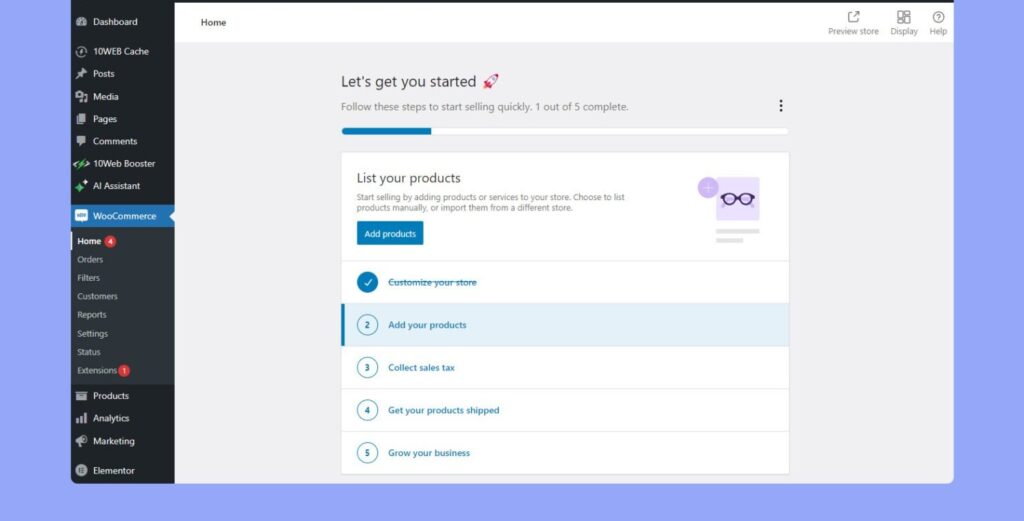
Setting up your WooCommerce store can feel exciting and a little overwhelming at the same time. There are so many default settings from store address, shipping zones, shipping classes, payment options, taxes, inventory, to emails and it’s easy to get lost.

But here’s the good news: once you understand these settings, your store will run smoothly, save you headaches, and even help you scale. Today, I’ll walk you through every important WooCommerce default setting, explain why it matters, and even share some advanced plugins you can use to take your store to the next level.

By the end of this guide, you’ll feel confident setting up your store like a pro whether you’re selling fashion, electronics, or any product you can dream of.

1️⃣ General Settings – Store Address & Location 🌍

Every WooCommerce store starts here. These are the basics that everything else depends on.

Key Default Settings:

  • Store Address: This is your “official location.” WooCommerce uses it to calculate taxes, estimate shipping, and set up local business info.

  • Country / State: Determines tax rules and shipping calculations.

  • Currency Options: Choose your currency, symbol, and placement. Example: USD ($) or LKR (Rs).

  • Units: Weight (kg, lbs) and dimensions (cm, in) are critical if you sell physical products.

2️⃣ Shipping Settings – Zones, Methods, and Classes 🚚

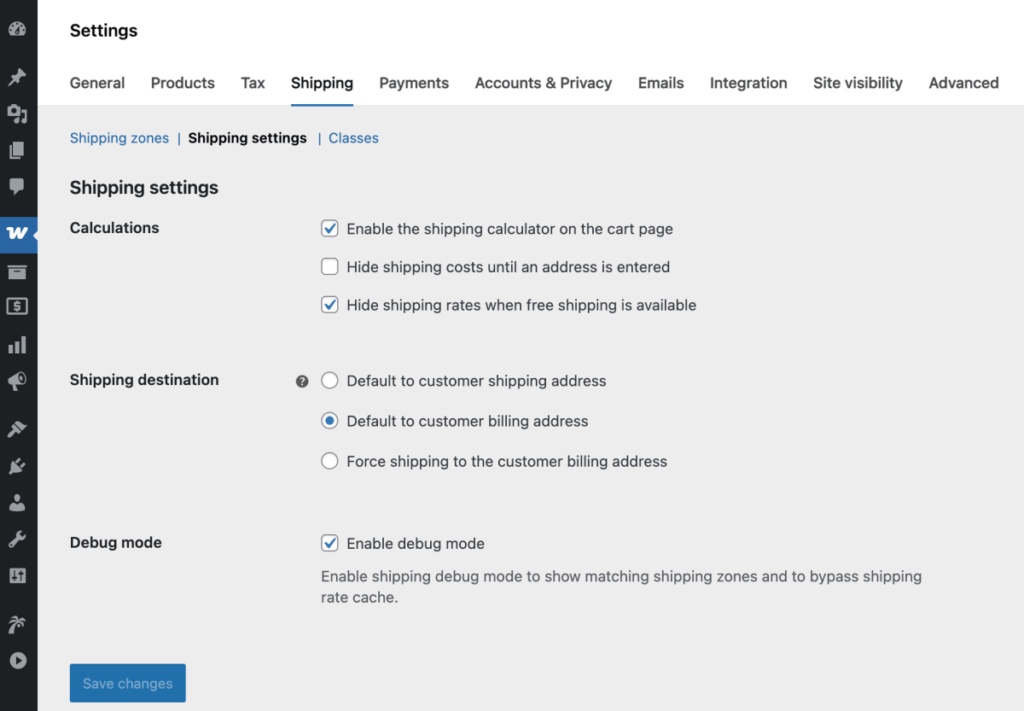
Shipping is a crucial part of WooCommerce, and the default settings make it easy to start.

Shipping Zones

  • A shipping zone is basically a geographic region where you ship your products.

  • Example: “Sri Lanka,” “Europe,” “North America.”

  • You can assign different shipping methods for each zone.

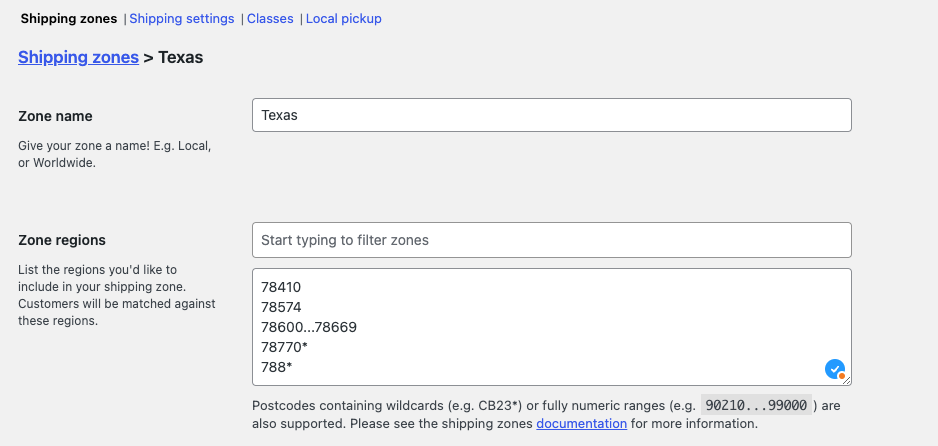
Follow these steps to add a shipping zone: 

  1. Go to: WooCommerce > Settings > Shipping > Shipping zones.
  2. Click Add zone at the top.
  3. Enter a descriptive Zone name.
  4. Select the Zone regions that apply. Regions can consist of: Countries, States/Provinces, Continents.
  5. Optional: Limit to specific zip/postcodes to further narrow which customers match this zone. Zip/Postcodes must be entered one code per line.
Shipping Methods

WooCommerce offers default methods:

  • Flat Rate: Charge a fixed price.

  • Free Shipping: Offer free shipping over a certain amount.

  • Local Pickup: Customers pick up from your store.

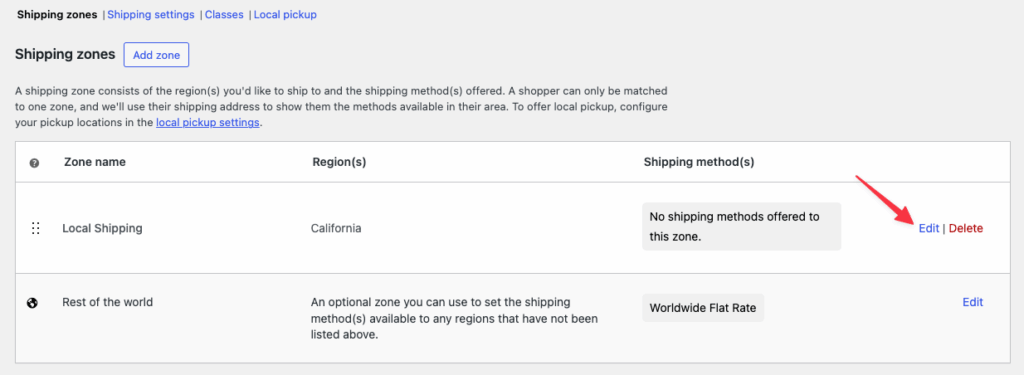
The next step is to add shipping methods to the shipping zone that you created. Shipping methods are the shipping options that customers will see on the checkout page. WooCommerce has three core shipping methods built-in: Flat Rate, Free Shipping, and Local Pickup. 

  1. Go to WooCommerce > Settings > Shipping > Shipping zones.
  2. Click Edit on the shipping zone where you want to add a shipping method.

Shipping Classes

  • Shipping classes group products with similar shipping costs.

  • Example: Heavy furniture costs more than light t-shirts.

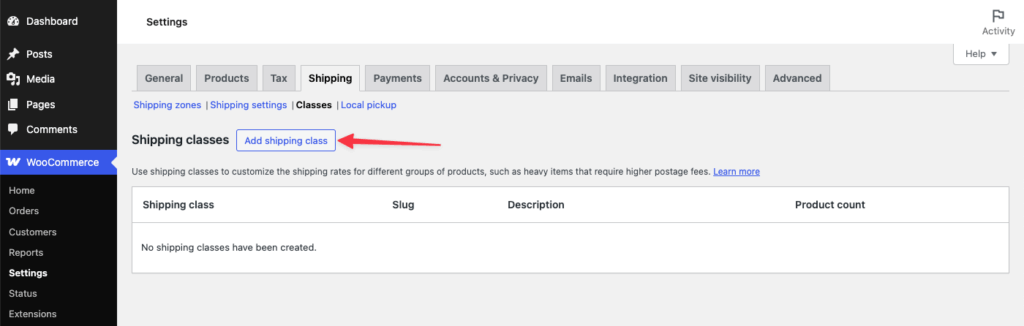
  1. Go to: WooCommerce > Settings > Shipping > Classes.
  2. Select the Add shipping class button.

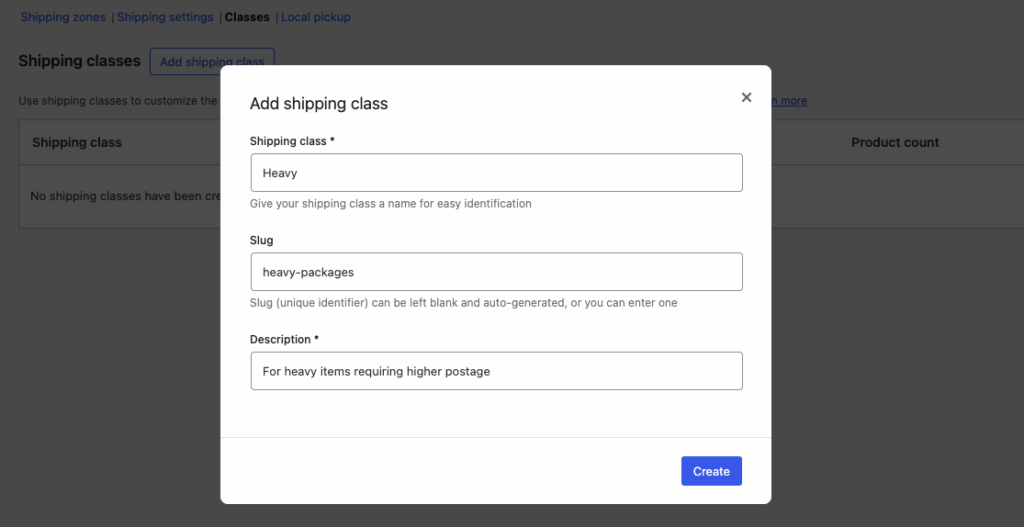
      3.Fill in the form that appears on your screen. It includes these three fields:

  • Shipping Class – This is the name of the shipping class (e.g., Heavy).
  • Slug – This is the unique identifier. Leave it blank for automatic generation or input your own (e.g., heavy-packages).
  • Description – Provide a brief description to clarify the purpose of this shipping class (e.g., for heavy items that require higher postage).

     4.Select Create to finish.

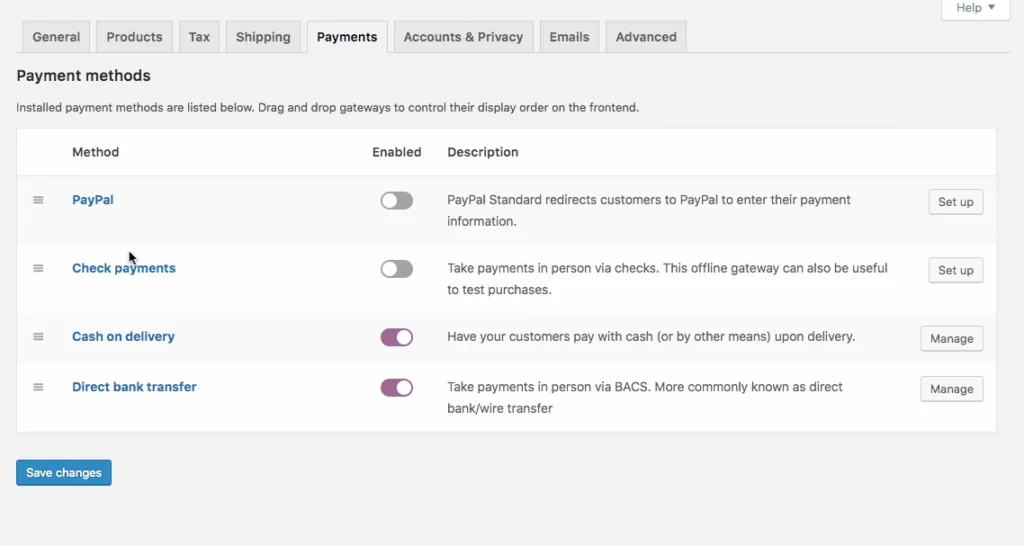
3️⃣ Payment Settings – Accepting Payments Online 💳

WooCommerce default payment settings are beginner-friendly but powerful.

Default Payment Methods


  1. Direct Bank Transfer (BACS) – Customers pay directly into your bank account.

  2. Check Payments – Useful for local offline orders.

  3. Cash on Delivery (COD) – Popular in many regions.

  4. PayPal Standard – Accepts credit cards without a separate merchant account.

4️⃣ Tax Settings – Keeping Your Store Legal 💰

Even small stores must think about taxes. WooCommerce default tax settings allow:

  • Enable taxes for automatic calculation.

  • Base tax on your store address or customer shipping address.

  • Set standard rates for local VAT/GST.

5️⃣ Inventory & Product Settings – Stay Organized 🧾

WooCommerce lets you manage your products and stock easily from default settings:

  • Inventory Management: Enable stock tracking, set low stock notifications, and manage backorders.

  • Product Options: Set default category, image sizes, enable reviews for credibility.

  • Email Notifications: Default emails for new, canceled, and completed orders.

The Products Settings on WooCommerce > Settings > Products control how products are displayed, measured, inventoried, and downloaded from your shop.

6️⃣ Advanced Plugins to Enhance Default Settings ⚡

WooCommerce is powerful on its own, but these plugins make default settings even better:

  1. WooCommerce Shipping & Tax – Automatically calculates taxes and prints shipping labels.

  2. Table Rate Shipping – Add advanced shipping rules based on weight, quantity, or location.

  3. WooCommerce Stripe Payment Gateway – Accepts all major cards with a secure checkout.

  4. WooCommerce PDF Invoices & Packing Slips – Automatically generate professional invoices.

  5. WooCommerce Customizer – Easily tweak default WooCommerce settings without code.

Once your default settings are configured, your store is ready to grow. You’ve laid the foundation, optimized shipping, set up payments, and prepared for inventory.

WooCommerce gives you freedom, control, and flexibility. You can start small with low costs, and as your business grows, these settings and plugins help you scale smoothly.

Imagine seeing your first order come in. That first notification, that first sale  it’s magical, and it proves your dream is now real.

So take the leap, explore these settings, and make your WooCommerce store truly yours! 🌟

  • Related Posts

    How to Earn Money on Medium in 2026

    I still remember the day I published my first article on Medium. No followers.No audience.No idea if I’d ever earn even one dollar. I clicked Publish, closed my laptop, and…

    How to Use Social Media Trends to Boost Your Small Business in 2025 📱🚀

    Hello, Friend! Let’s Talk Social Media Hey! I want to share something exciting with you today, how small businesses can use social media trends to reach more customers and grow…

    Leave a Reply

    Your email address will not be published. Required fields are marked *

    You Missed

    When Is Presidents Day and What’s Closed on a Federal Holiday?

    • By admin
    • February 9, 2026
    • 15 views
    When Is Presidents Day and What’s Closed on a Federal Holiday?

    Mariah Carey and the Moments That Defined the Olympic Opening Ceremony

    • By admin
    • February 7, 2026
    • 33 views
    Mariah Carey and the Moments That Defined the Olympic Opening Ceremony

    TrumpRx Explained: How the New Prescription Drug Platform Promises the World’s Lowest Medicine Prices

    • By admin
    • February 6, 2026
    • 25 views
    TrumpRx Explained: How the New Prescription Drug Platform Promises the World’s Lowest Medicine Prices

    The 2026 Winter Olympics: Milano Cortina 2026 – A Celebration of Winter, Sport, and Italy

    • By admin
    • February 4, 2026
    • 26 views
    The 2026 Winter Olympics: Milano Cortina 2026 – A Celebration of Winter, Sport, and Italy

    Why Today Is the Best Day to Start a YouTube or Video Business

    • By admin
    • January 25, 2026
    • 11 views
    Why Today Is the Best Day to Start a YouTube or Video Business

    The Simple Bookkeeping Process for Small Businesses:Part 2

    • By admin
    • January 13, 2026
    • 84 views
    The Simple Bookkeeping Process for Small Businesses:Part 2