As you know, in today’s world we are all using Excel. From business reports and sales data to grocery budgets and student marks, Excel has become part of our everyday life. But many people still do a lot of manual work without knowing some of Excel’s smartest features.
So think about this moment…
You have a data sheet, and in that sheet, some cells are filled, and some are left blank. You need to fill in those blank cells. What do you do?
Most people start copying and pasting the data one by one. That works, but imagine doing that across 500 rows? You’ll waste a lot of time and effort.
Let’s take a real-life example. Suppose you’re going to buy some fruits for your fruit juice bar.
You’ve listed down the fruits and the different unit prices based on size or weight:
| Product Name | Unit Price |
|---|---|
| Mango | 250 / 200 / 500 / 650 |
| Papaya | 300 / 220 / 210 |
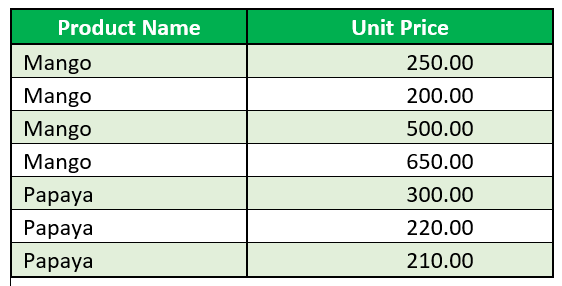
Now, you want to rearrange this data for easy tracking like this:
Easy, right? But if you manually typed “Mango” and “Papaya” multiple times, you know how boring and time-consuming it is especially when you have hundreds of rows.
This is where AutoFill in Excel becomes your time-saving hero.
🔍 What is AutoFill in Excel?
AutoFill is a built-in Excel feature that lets you fill data automatically based on patterns. It works for:
Numbers
Dates and days
Text lists
Formulas
Blanks
You can use it to fill downward, upward, left, or right. It’s like saying:
“Hey Excel, copy this logic and finish the rest for me!”
✅ Basic AutoFill: Step-by-Step
Step 01: Enter a value
Example: Type 01 in cell A1.
Step 02: Use the Fill Handle
Move your mouse to the bottom-right corner of the cell. You’ll see a small square (fill handle).
Click and drag it down or sideways. Excel automatically continues the pattern like 2,3,4,5.....
🎥 AutoFill with Real-Life Video Example
🧠 AutoFill with Real-Life Data Example
Let’s revisit your fruit juice bar example. After separating prices into different rows, your table might look like this:
Your goal is to fill the blank “Product Name” cells with the correct values above without doing it manually.
Here’s how to do it fast using Excel’s AutoFill technique with Go To Special
✅ Step-by-Step: Fill Down Blank Cells in Excel
Step 1: Select the entire column
Click on the header (like column A) or select only the range containing your data.
Step 2: Open the Go To dialog box
Press Ctrl + G on your keyboard.
Then click the “Special…” button at the bottom of the window.
Step 3: Choose “Blanks”
In the “Go To Special” window, select Blanks and click OK.
Excel will now highlight all the blank cells in that selection.
Step 4: Type = and press the ↑ Up Arrow key
This tells Excel to reference the value from the cell above.
For example, if you’re in cell A3, you’ll see: =A2.
Step 5: Press Ctrl + Enter
Excel will fill all selected blank cells with the correct values from above using a simple formula.
Step 6: Convert formulas to text values
Select the same column again
Press
Ctrl + Cto copyRight-click → Paste Special → Choose Values
Done! Now all your blank cells are filled in as static text, and your data is clean, organized, and ready for further analysis or pivot tables.
This method is a must-know trick when cleaning up Excel sheets for reporting, inventory management, or data entry.
AutoFill for Days and Dates
Fill Days of the Week
Type Monday in a cell → Drag down → You’ll get: Tuesday, Wednesday, Thursday…
Fill Dates
Type 01/08/2025 → Drag right → You’ll get:02/08/2025, 03/08/2025…
Pro Tip:
Right-click while dragging the fill handle to see extra options like:
Fill Weekdays
Fill Months
Fill Years
➗ AutoFill Formulas Easily
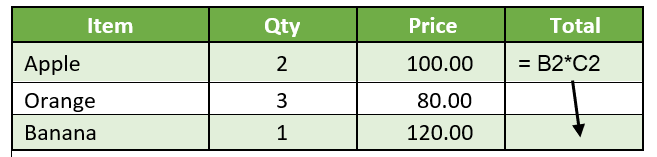
Let’s say you’re calculating totals:
Step 1: Enter the formula =B2*C2 in cell D2
Step 2: Drag the fill handle down
Excel will automatically adjust the formula in each row.
AutoFill may look like a small feature, but it saves huge amounts of time and effort especially when working with large datasets.
From filling in missing values and repeating product names to calculating formulas and generating schedules, AutoFill takes away the boring, repetitive parts of your work.
So next time you find yourself copying and pasting, remember:
“Wait a minute… AutoFill can do this faster!”