admin
admin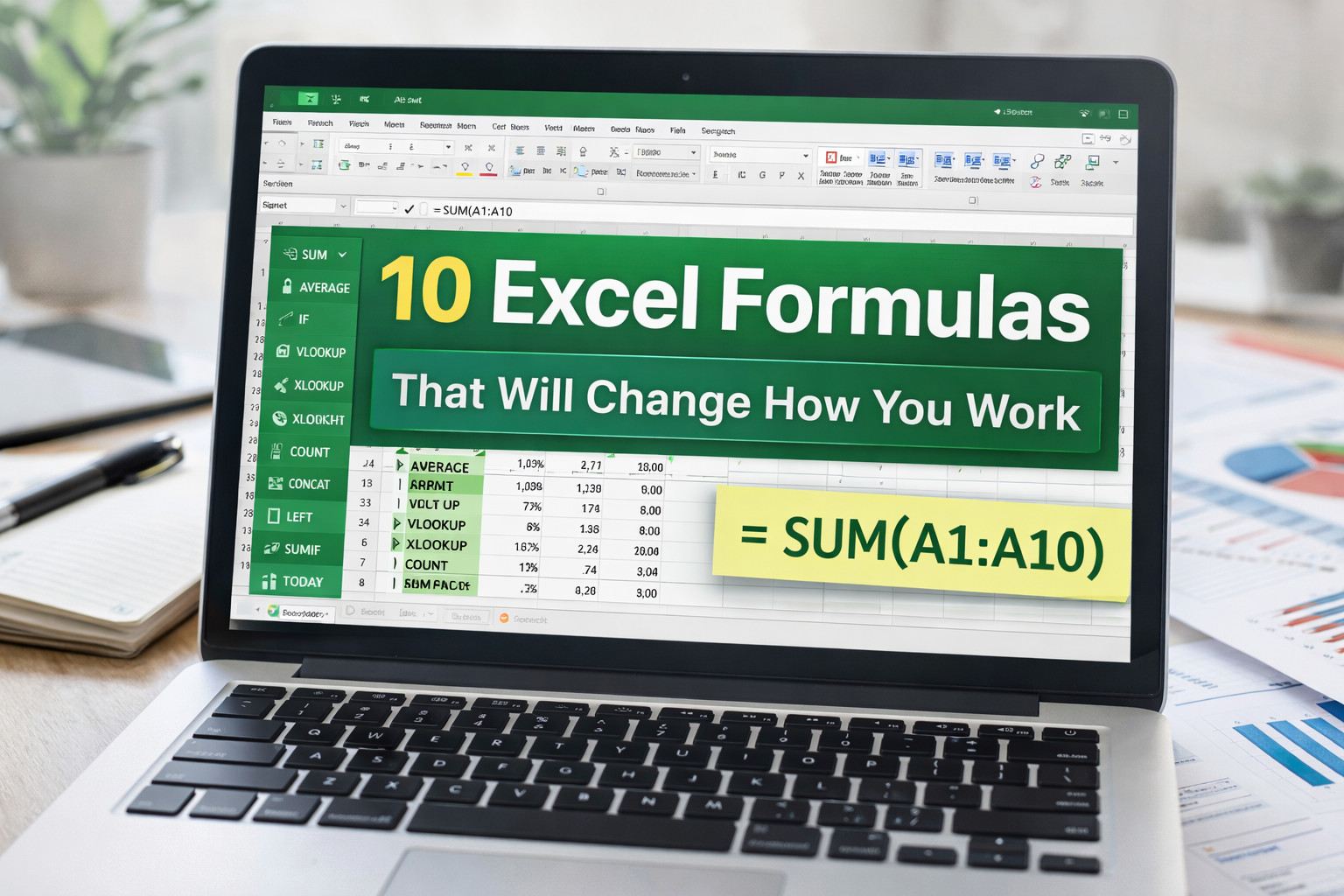
Today, almost every office job depends on Microsoft Excel. Whether you are working in accounts, inventory, HR, or administration, Excel is part of your daily work.
But let me ask you something…
👉 Are you just typing data in Excel, or are you actually using it smartly?
Most people only use Excel for basic tasks. But if you know a few important formulas, you can save hours of work, reduce mistakes, and even stand out in your job.
Today, I want to explain 10 Excel formulas every office worker should know, including:
- Why we use them
- When to use them
- How to use them (simple steps)
I’m not going into very advanced technical details here. The goal is to help you understand how these formulas actually help in real work.
If you want a detailed step-by-step article for any formula, just comment below – I’ll create it for you.
1. SUM – Add Numbers Instantly
What is it? SUM is used to add numbers together.
Why we use it Because calculating totals manually takes time and can cause mistakes.
When to use it Total sales / Monthly expenses / Inventory totals
=SUM(A1:A10)
2. AVERAGE – Calculate the Mean
What is it? AVERAGE is used to find the mean value of a group of numbers.
Why we use it: Because it helps you understand overall performance instead of just totals.
When to use it: Student marks / Salary analysis / Performance tracking
=AVERAGE(A1:A10)
3. IF – Make Logical Decisions
What is it? IF checks a condition and returns one result if true, another if false.
Why we use it: To automate decisions instead of checking manually.
When to use it: Pass/Fail / Bonus / Stock alerts
=IF(A1>50,”Pass”,”Fail”)
4. VLOOKUP – Find Data Quickly
What is it? VLOOKUP searches for a value in a table and returns matching data.
Why we use it: To avoid manually searching large datasets.
When to use it: Product prices / Customer details / Inventory lookup
=VLOOKUP(A2,Sheet2!A:B,2,FALSE)
5. XLOOKUP – Advanced Lookup
What is it? XLOOKUP is a modern lookup function that replaces VLOOKUP.
Why we use it: It is more flexible and works in any direction.
When to use it: Advanced data lookup / When VLOOKUP fails
=XLOOKUP(A2,A:A,B:B)
6. COUNT & COUNTA – Count Cells
What is it? COUNT counts numbers, COUNTA counts all non-empty cells.
Why we use it: To quickly know how many entries are in a dataset.
When to use it: Reports / Data tracking / Record counting
=COUNT(A1:A10) / =COUNTA(A1:A10)
7. CONCAT / TEXTJOIN – Combine Text
What is it? These formulas combine text from multiple cells into one.
Why we use it: To clean and organize data.
When to use it: Full names / Addresses / Reports
=CONCAT(A1,” “,B1)
8. LEFT, RIGHT, MID – Extract Text
What is it? These formulas extract specific parts of text.
Why we use it: To clean messy data and get required information.
When to use it: Codes / IDs / Text formatting
=LEFT(A1,4)
9. SUMIF – Conditional Sum
What is it? SUMIF adds values based on a condition.
Why we use it: To calculate specific category totals.
When to use it: Expenses / Sales categories
=SUMIF(A1:A10,”Food”,B1:B10)
10. TODAY & NOW – Auto Date & Time
What is it? These functions return the current date and time automatically.
Why we use it: To avoid manual date entry.
When to use it: Reports / Daily tracking
=TODAY() / =NOW()