How to Add a Drop-Down List in Excel

Microsoft Excel is one of the most useful tools used in offices for managing data, preparing reports, and organizing information. When we work with large datasets, it is important to make the data consistent and easy to select.

Today, I want to explain to you another useful Excel feature — how to add a drop-down list in Excel.

Before we go into the steps, let me first explain a simple real-life example where we need to use this feature.

📦 REAL-LIFE EXAMPLE

ABC Company — Mobile Phone Inventory

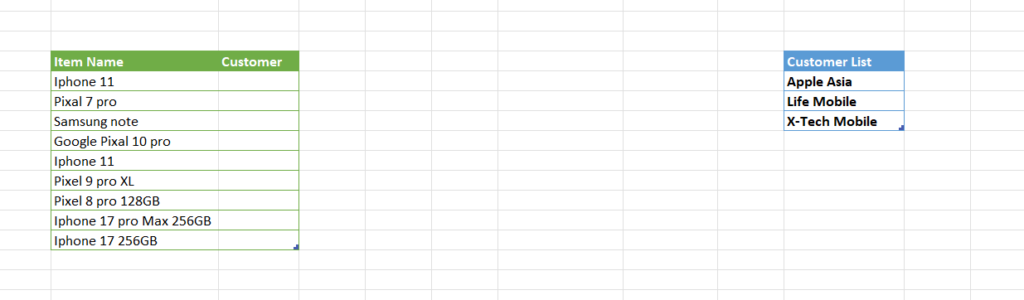
Imagine a company called ABC Company that sells mobile phones and manages their inventory in Excel. Their current item list looks like this:

ABC_Inventory.xlsx
A — Item Name
1iPhone 11
2Pixel 7 Pro
3Samsung Note
4Google Pixel 10 Pro
5Pixel 9 Pro XL
6iPhone 17 Pro Max 256GB
7iPhone 17 256GB

They sell these products to customers like Apple Asia, Life Mobile, and X-Tech Mobile. When recording sales, they enter customer names manually every time — and this is where the problem starts.

⚠ THE PROBLEM — MANUAL TYPING CAUSES ERRORS
  • Spelling mistakes — “Apple Asia” typed as “Aple Asia”
  • Different formats — “Apple asia” vs “APPLE ASIA” vs “Apple Asia”
  • Incorrect entries that break filters and reports
  • Excel treats all variations as completely different customers
✔ THE SOLUTION — DROP-DOWN LIST

A drop-down list allows users to select values from a predefined list instead of typing manually. One click. Always correct. This improves both data accuracy and entry speed.

Step-by-Step: Creating a Drop-Down List in Excel

Follow these 7 steps carefully. You can practice along as you read-it only takes a few minutes to set up your first drop-down list.

STEP 01

Prepare Your List of Values

First, create the list of items that will appear inside the drop-down menu. You can place this list in another sheet or in another area of the same sheet.

STEP 02

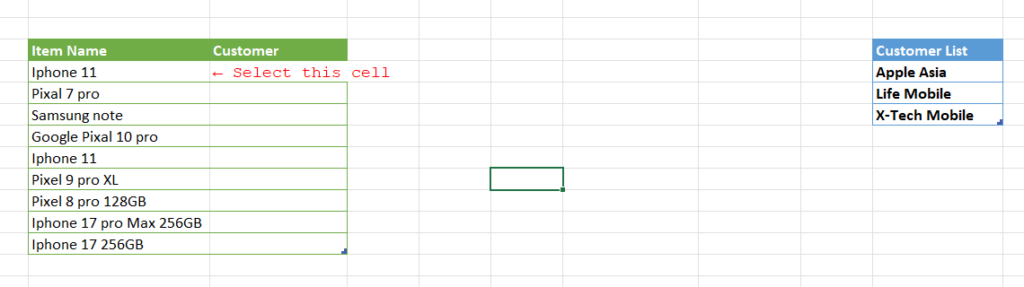
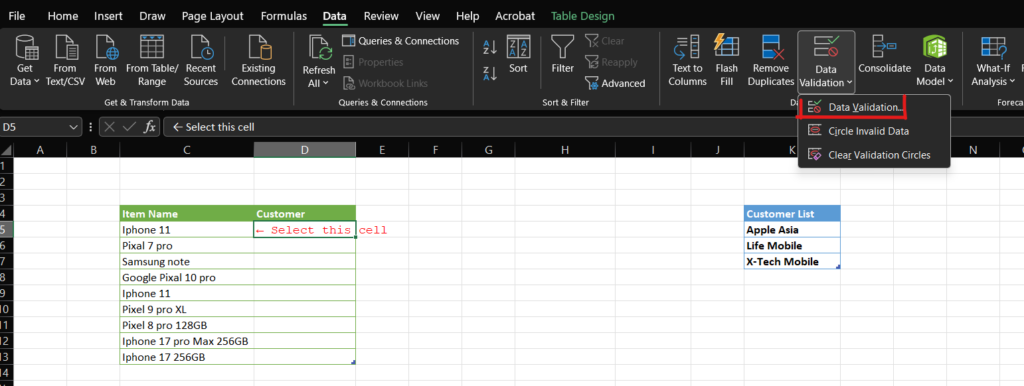
Select the Cell for the Drop-Down

Select the cell where you want the drop-down list to appear. For example the “Customer Name” column.

STEP 03

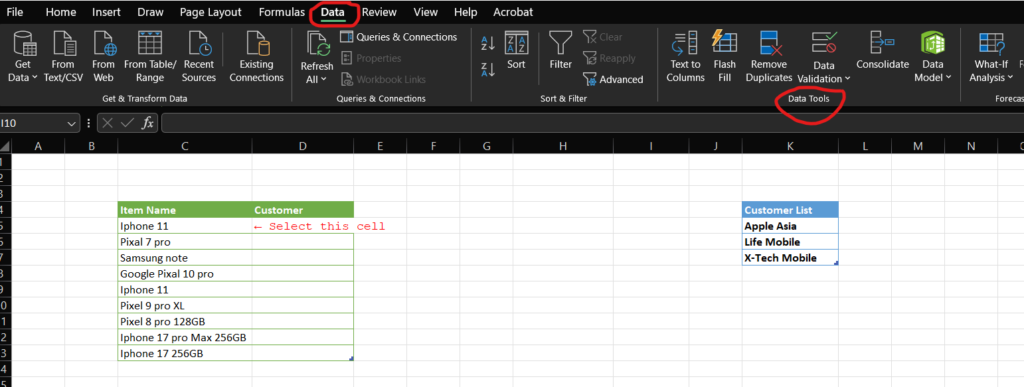
Go to the Data Tab

At the top ribbon in Excel click the Data tab.

Excel Ribbon Data Tab Data Tools
STEP 04

Click Data Validation

Inside the Data tab click Data Validation. This will open the settings window for validation rules.

STEP 05

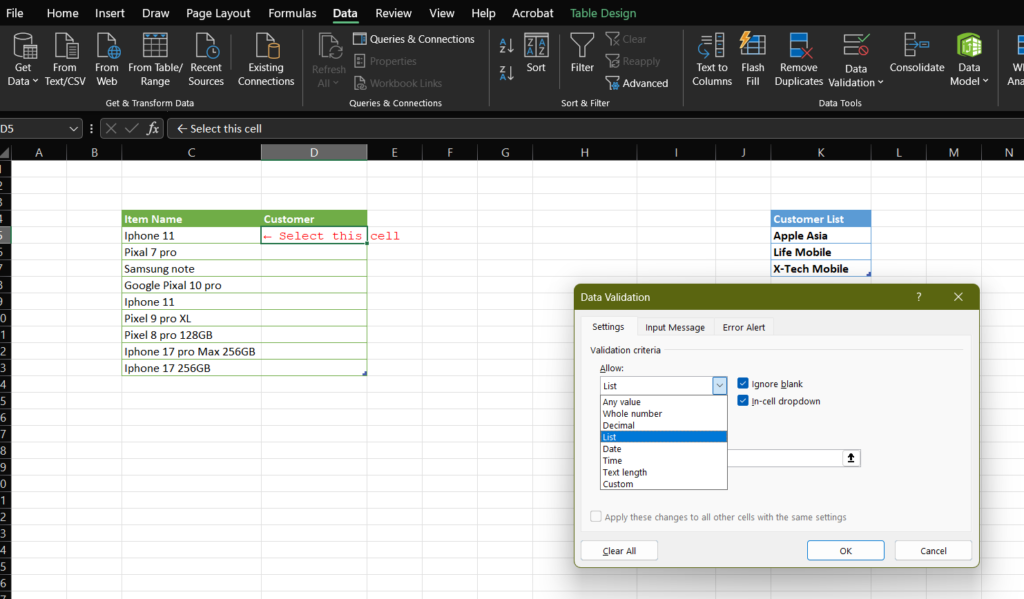
Select “List” as Validation Type

In the Allow dropdown select List. This tells Excel to create a dropdown list.

STEP 06

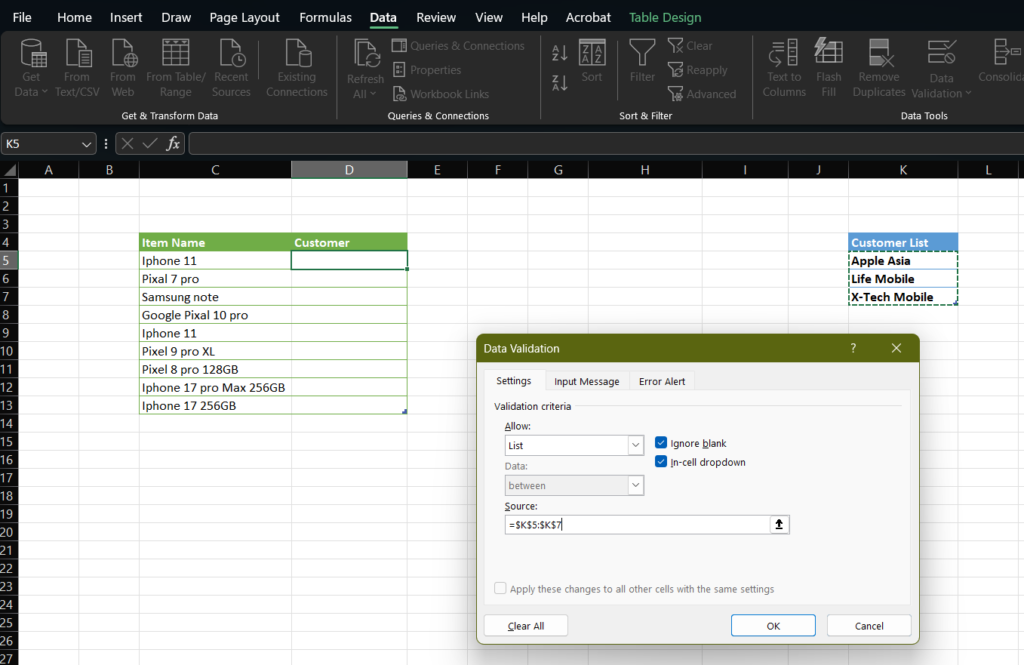
Select the Source List

Select the cells that contain your customer names. Make sure you select only the data range. Do not include the cell where the drop-down list will appear. If you include that cell in the selected range, the drop-down will also appear in the list itself.

Source =Sheet2!A1:A3
STEP 07

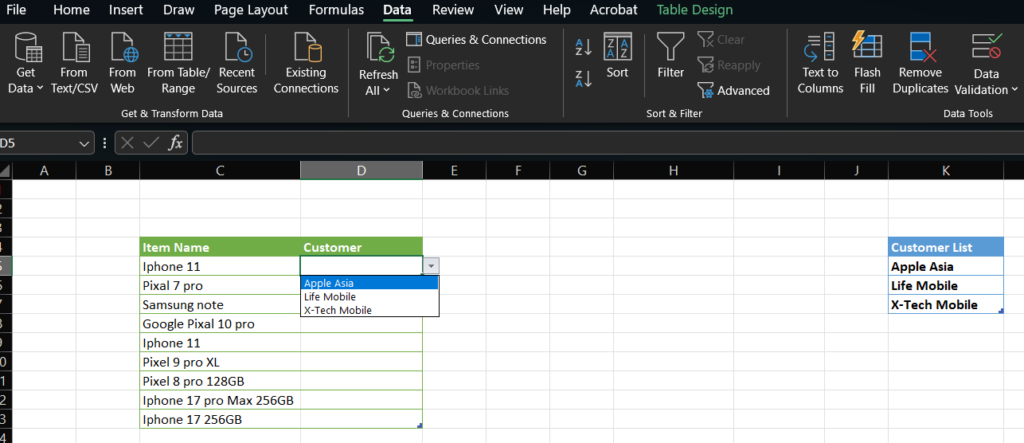
Click OK

Click OK and your drop-down list will appear in the selected cell. Users can now select values instead of typing manually.

Video Tutorial Drop-Down List in Excel

  • Related Posts

    Automatically Add Borders in Excel When You Enter Data

    Have you ever noticed that every time you enter new data into an Excel table, you have to manually add borders? If you work with sales reports, employee lists, invoices,…

    Fix XLOOKUP #N/A Errors with TRIM in Excel

    When we create lookup formulas in Excel, sometimes we get unexpected errors even though the data looks perfectly correct. One of the most common reasons for this problem is extra…

    Leave a Reply

    Your email address will not be published. Required fields are marked *

    You Missed

    The Best Healthy Drinks You Can Drink Every Day

    • By admin
    • July 23, 2026
    • 12 views
    The Best Healthy Drinks You Can Drink Every Day

    Sri Lanka Upgraded to Upper-Middle-Income Economy: From Economic Crisis to Remarkable Recovery

    • By admin
    • July 1, 2026
    • 33 views
    Sri Lanka Upgraded to Upper-Middle-Income Economy: From Economic Crisis to Remarkable Recovery

    Petal Glow Handmade Daisy Flower Candle

    • By admin
    • July 1, 2026
    • 18 views
    Petal Glow Handmade Daisy Flower Candle

    5 Best Free Expense Tracker Apps in 2026 to Save Money

    • By admin
    • June 26, 2026
    • 39 views
    5 Best Free Expense Tracker Apps in 2026 to Save Money

    Automatically Add Borders in Excel When You Enter Data

    • By admin
    • June 26, 2026
    • 20 views
    Automatically Add Borders in Excel When You Enter Data

    Fix XLOOKUP #N/A Errors with TRIM in Excel

    • By admin
    • June 26, 2026
    • 17 views
    Fix XLOOKUP #N/A Errors with TRIM in Excel