admin
admin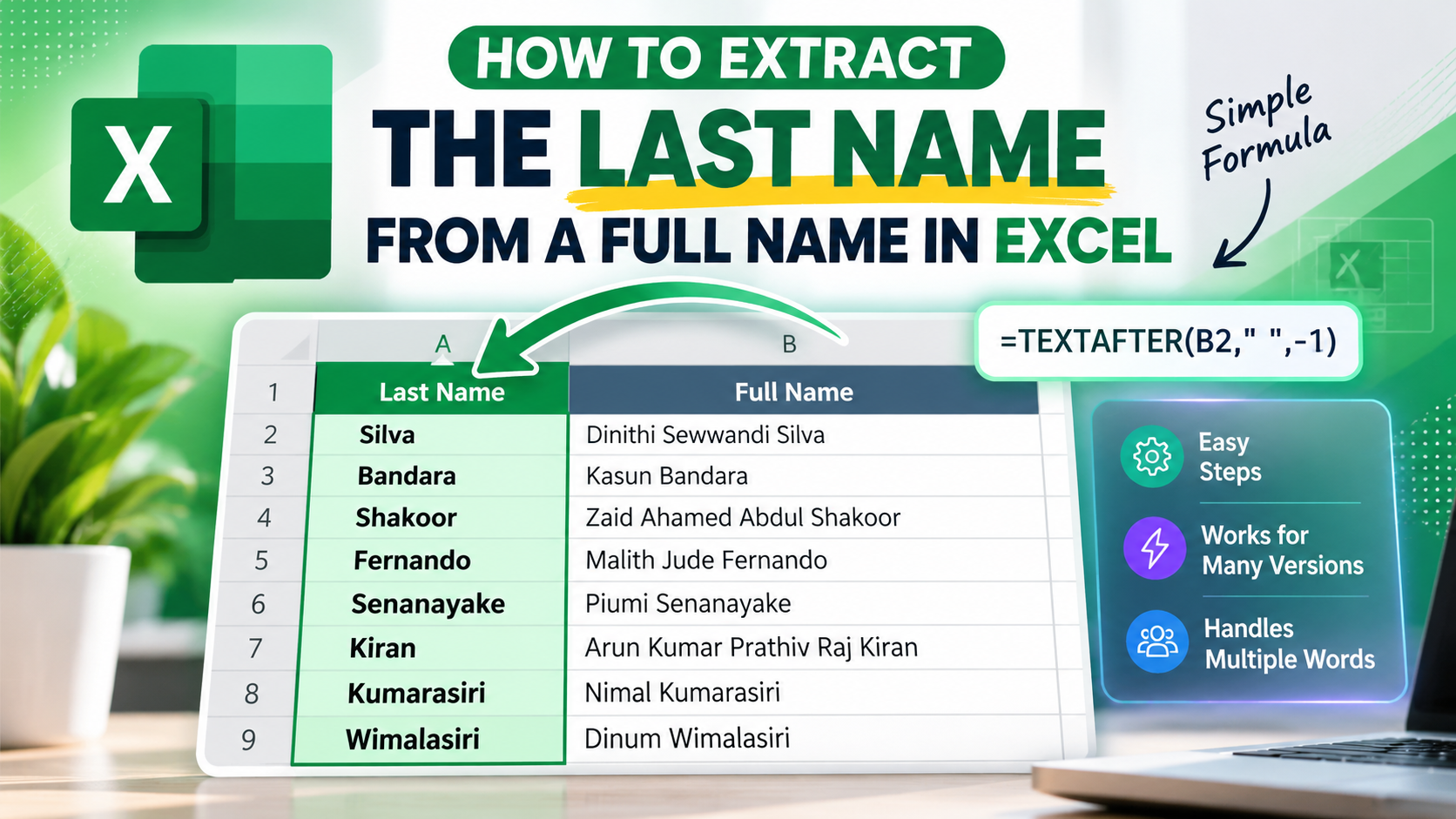
Imagine your manager gives you an Excel file containing hundreds of customer names and asks you to prepare a separate list of last names. Would you copy each name, find the last word, and paste it into another column manually?
You could do that, but it would take time, especially when you work with a large list. You might also make mistakes or miss some names.
Fortunately, Excel has a simple solution. You can use the TEXTAFTER function to extract the last word from a full name automatically.
In this tutorial, I’ll show you how to extract last names from a list of full names, explain how the formula works, and demonstrate how to handle blank cells, extra spaces, and older Excel versions.
1. Prepare Your Excel Worksheet
Let’s start with a simple example.
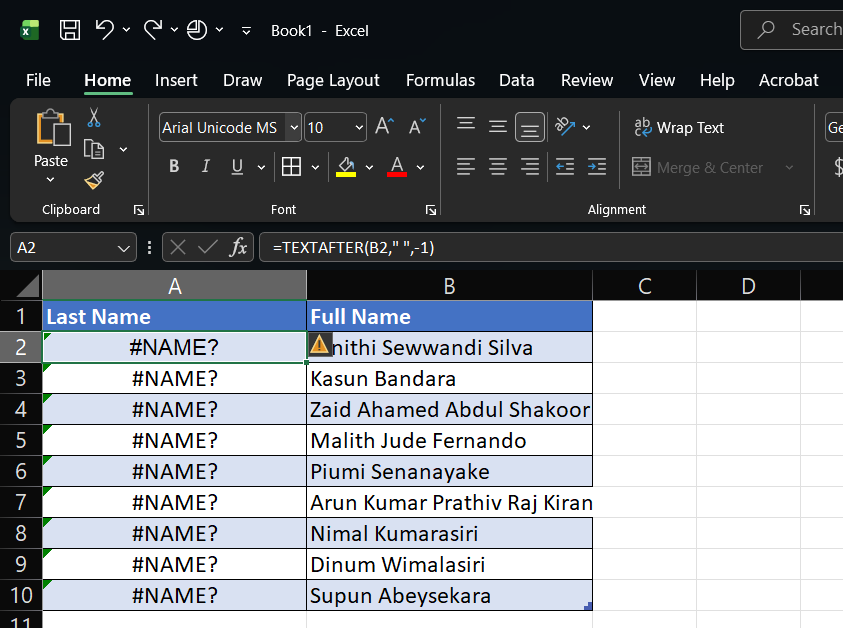
Suppose you have a list of full names in column B and want to extract the last word into column A.
Your worksheet might look like this:
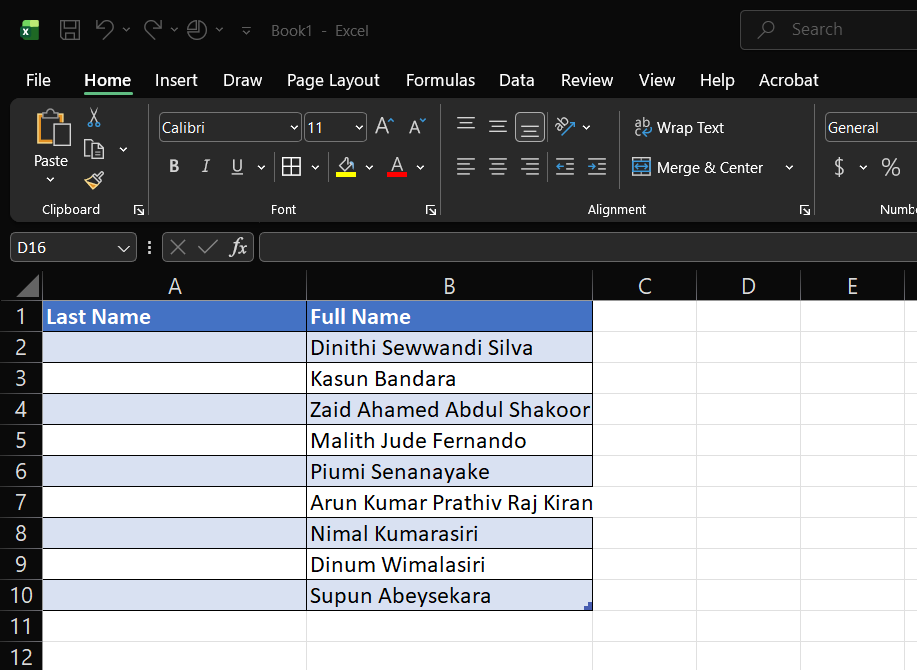
The headings are in row 1, and the first full name is in cell B2. We want the extracted result to appear in cell A2.
Some names contain two words, while others contain three or four. Instead of manually identifying the last word in every name, we can let Excel do the work.
2. Extract the Last Name Using TEXTAFTER
The easiest method is to use Excel’s TEXTAFTER function.
Step 1: Select cell A2
Click cell A2, directly below the Last Name heading.
This is where the first extracted result will appear.
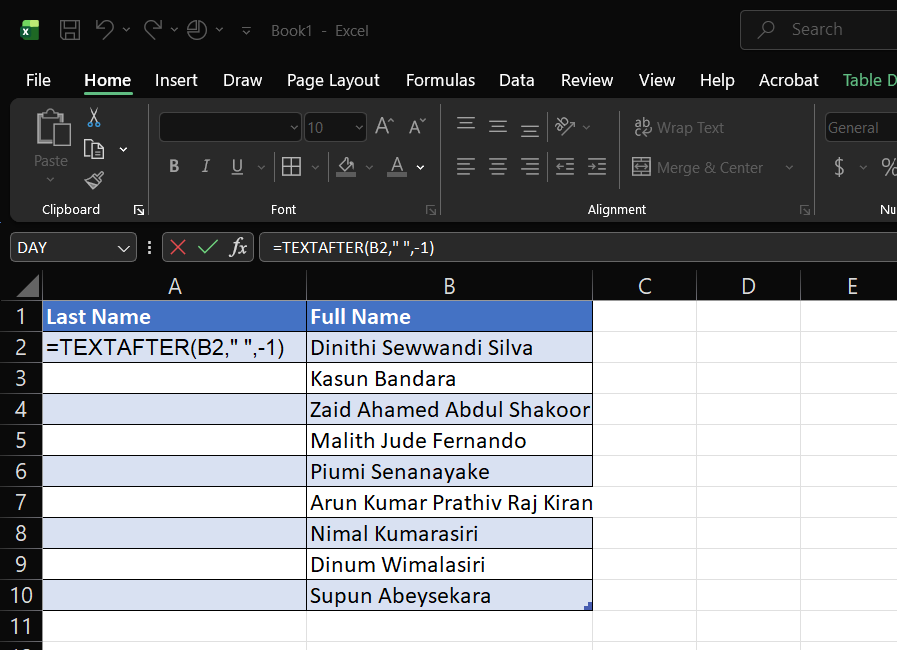
Step 2: Enter the formula
Type this formula into cell A2:
=TEXTAFTER(B2," ",-1)
Press Enter.
If B2 contains Dinithi Sewwandi Silva, Excel will return:
Silva
That’s all you need to extract the last word from this name.
Step 3: Copy the formula to the remaining rows
After getting the result in A2, you don’t need to type the formula again for every name.
Follow these steps:
Select cell A2.
Move your mouse to the small square at the bottom-right corner of the selected cell.
When the cursor changes to a small plus sign, drag the fill handle down to the last row containing a full name.
Excel will automatically adjust the cell references for each row.
For example:
In A2:
=TEXTAFTER(B2," ",-1)In A3:
=TEXTAFTER(B3," ",-1)In A4:
=TEXTAFTER(B4," ",-1)
Your worksheet will now display the last word of each full name in column A.
3. How Does the Formula Work?
Let’s break down the formula:
=TEXTAFTER(B2," ",-1)
There are three important parts.
B2 — The source cell
The reference B2 tells Excel where to find the full name.
In your worksheet, the full names are in column B, beginning at row 2.
” ” — The delimiter
The quotation marks contain a single space.
A delimiter is a character or text that separates parts of a string. In a full name, spaces separate the individual words.
For example, Dinithi Sewwandi Silva contains a space between Dinithi and Sewwandi, and another between Sewwandi and Silva.
-1 — Search from the end
This is the important part of the formula.
The -1 argument tells Excel to search for the delimiter starting from the end of the text. Excel therefore uses the last space and returns everything after it.
4. Handle Blank Cells and Names Without Spaces
Real-world spreadsheets aren’t always perfectly organized. Your list might contain blank cells, single-word names, or extra spaces.
For example, a cell might contain Dinithi Sewwandi Silva, Nimal, or no name at all.
The basic formula returns a #N/A error when the name contains no space, as in Nimal.
To handle these situations more reliably, use this formula in A2:
=IF(TRIM(B2)="","",IFERROR(TEXTAFTER(TRIM(B2)," ",-1),TRIM(B2)))
This formula handles several cases:
TRIM(B2)removes leading and trailing ordinary spaces and reduces repeated ordinary spaces between words to single spaces.IF(TRIM(B2)="","",...)returns a blank result if the source cell is empty or contains only ordinary spaces.TEXTAFTER(TRIM(B2)," ",-1)extracts the last word when the name contains a space.IFERROR(...,TRIM(B2))returns the cleaned name ifTEXTAFTERproduces an error, such as when the cell contains onlyNimal.
5. What If You Use an Older Version of Excel?
The TEXTAFTER function is available in Microsoft 365 and supported newer versions of Excel, including Excel 2024. It isn’t available in Excel 2016 or Excel 2019.
If your Excel version doesn’t support TEXTAFTER, you can use this alternative formula in A2:
=TRIM(RIGHT(SUBSTITUTE(TRIM(B2)," ",REPT(" ",100)),100))
This formula uses older Excel functions to extract the final word.
Here’s how it works:
TRIM(B2)cleans up ordinary extra spaces.SUBSTITUTEreplaces each space with a longer string of spaces.REPT(" ",100)creates a string containing 100 spaces.RIGHTextracts the final 100 characters.The outer
TRIMremoves the extra spaces, leaving the final word.
This alternative also handles a single-word name and returns a blank result for an empty cell.
It assumes that the final word is shorter than 100 characters, which is sufficient for ordinary name lists.
If you’re using Excel 2016 or Excel 2019, try this formula instead of TEXTAFTER.
6. Another Method: Use Text to Columns
You can also separate full names into individual words using Excel’s Text to Columns feature.
This method is useful when you want to split names into separate columns without using formulas.
Follow these steps:
Make a copy of your original full-name column so you don’t overwrite your data.
Select the copied column.
Go to Data → Text to Columns.
Select Delimited, then click Next.
Select Space as the delimiter.
Choose an empty destination area with enough columns.
Click Finish.
Excel will separate the words into different columns.
For example, Dinithi Sewwandi Silva might be split into three columns:
| First Word | Second Word | Third Word |
|---|---|---|
| Dinithi | Sewwandi | Silva |
However, this method doesn’t always place the final word in the same column. A two-word name and a four-word name will occupy different numbers of columns.
For that reason, TEXTAFTER is usually the easier choice when your goal is to extract only the final word into column A.
7. Common Problems and How to Fix Them
Problem 1: Excel returns #N/A
With the basic formula, this usually happens when the source cell doesn’t contain a space.
Try the more robust formula from Section 4, which handles single-word names and blank cells.
Problem 2: The result contains too much text
Check that your formula uses -1 as the final argument.
For example:
=TEXTAFTER(B2," ",-1)
Using 1 instead tells Excel to return everything after the first space, rather than the last space.
Problem 3: The formula returns an unexpected result because of extra spaces
Try this formula:
=TEXTAFTER(TRIM(B2)," ",-1)
It cleans ordinary extra spaces before extracting the final word.
Problem 4: Excel doesn’t recognize TEXTAFTER
Your Excel version may not support the function. Use the alternative formula from Section 5 if you’re working with Excel 2016 or Excel 2019.
Problem 5: The result isn’t the person’s complete surname
This isn’t necessarily a formula error.
The formula identifies the final word, not a person’s legal or culturally defined surname. If a surname contains multiple words, you’ll need additional rules or a separate source of structured surname data.
Problem 6: The formula overwrites existing information
Before filling the formula down, check that column A is available for your results. If column A already contains data, choose another empty column or move the existing information before proceeding.
8. When Is This Method Useful?
Extracting the final word from full names can help in several situations.
Customer lists: Prepare a separate column containing the final word of each customer name.
Employee records: Create an additional column for sorting, filtering, or reviewing employee information.
Mailing lists: Separate name components when preparing a basic contact list.
Data cleaning: Process imported name lists without manually editing every row.
Reports: Create an additional column for analysis when the final word is the information you need.
For large datasets, using a formula can reduce repetitive manual work and make your process more consistent. However, always verify the output when the results will be used for official records or important decisions.
Frequently Asked Questions
Everything you need to know about extracting last names in Excel.
01 How can I extract the last name from a full name in Excel? +
If the full name is in cell B2, enter this formula in cell A2 to extract the final word:
=TRIM(RIGHT(SUBSTITUTE(TRIM(B2)," ",REPT(" ",100)),100))
This formula works in many older Excel versions. Newer compatible versions can also use =TEXTAFTER(B2," ",-1).
02 Why is the TEXTAFTER function not working in my Excel? +
The TEXTAFTER function is unavailable in Excel 2016 and Excel 2019. Use the alternative formula above if your version does not support TEXTAFTER.
03 How do I extract last names from hundreds of rows? +
Enter the formula in A2, then drag the fill handle down alongside your names in column B. Excel automatically adjusts the row references for each name.
04 Can Excel extract the last word from names with several words? +
Yes. The formula extracts the final word whether a name contains two, three, or more words. However, it may not return an entire compound surname made up of multiple words.
05 What happens if a cell contains only one name? +
The alternative formula returns the single word as the result. For example, if B2 contains Nimal, the result in A2 will be Nimal.
06 Can I extract the first name instead of the last name? +
Yes. In compatible Excel versions, use =TEXTBEFORE(B2," ") to extract the first word from a name that contains a space.
07 Will the formula update when I change a full name? +
Yes. When you change the name in B2, the result in A2 updates automatically, provided Excel is using automatic calculation and the formula remains in A2.