admin
admin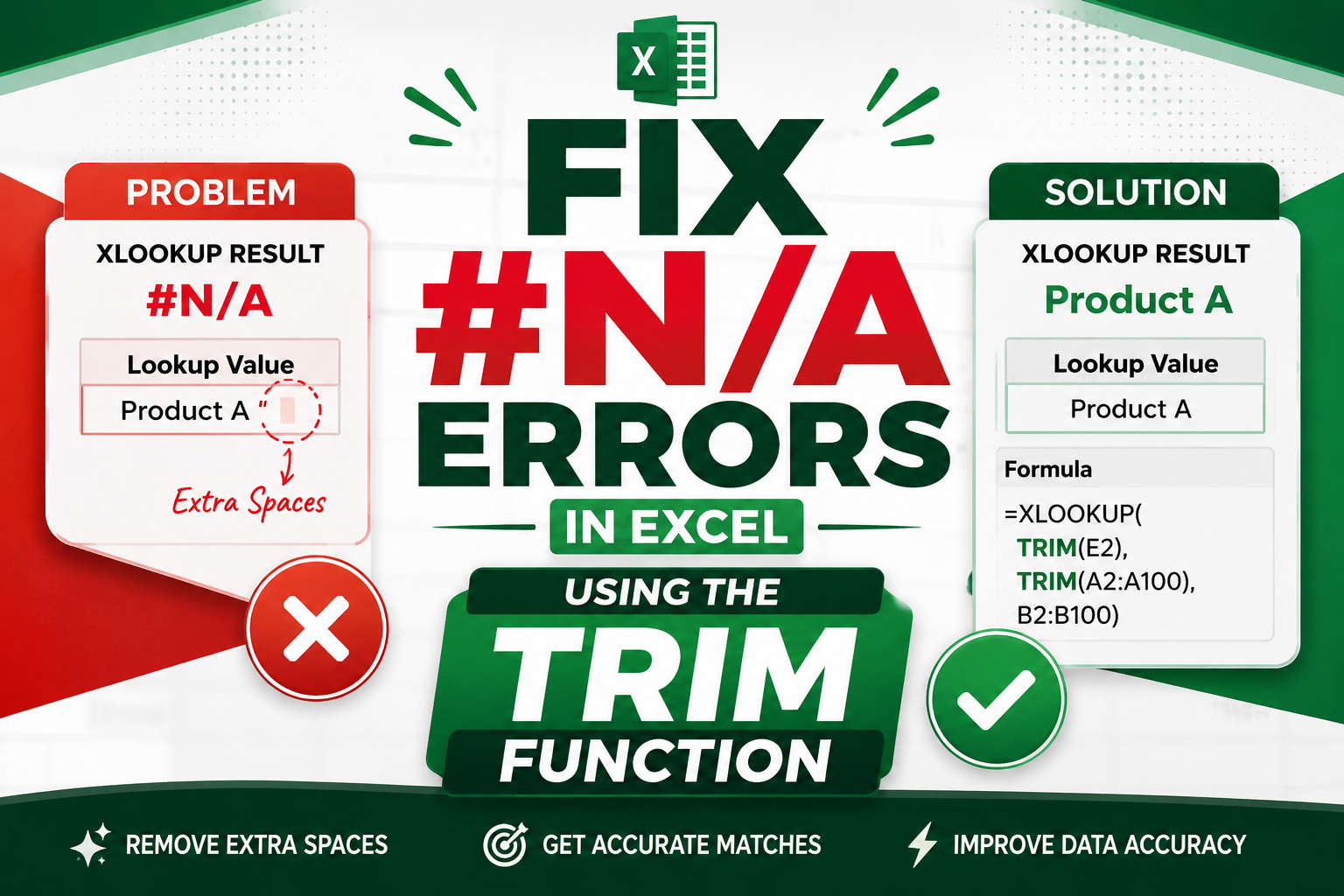
When we create lookup formulas in Excel, sometimes we get unexpected errors even though the data looks perfectly correct. One of the most common reasons for this problem is extra spaces hidden inside the data.
Many Excel users spend a lot of time checking formulas because they think the formula is wrong. However, in many situations the formula is correct, but the data contains leading or trailing spaces that prevent Excel from finding an exact match.
In this tutorial, we are going to learn how to use the XLOOKUP function together with the TRIM function to solve this problem.
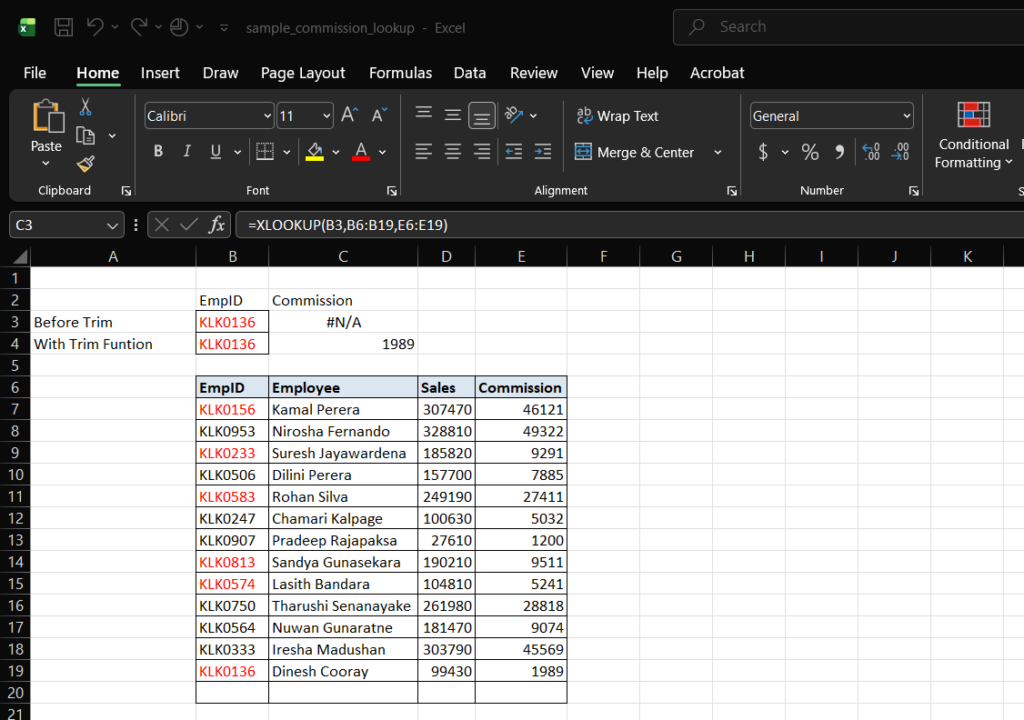
We will use a simple employee commission worksheet as shown in the example below. The goal is to search for an Employee ID and return the relevant commission amount. At first the formula returns a #N/A error, but after applying the TRIM function the lookup works perfectly.
If you frequently work with imported data, employee records, sales reports, or customer lists, this technique can save you hours of troubleshooting.
The Problem with Extra Spaces in Excel
Extra spaces are one of the most common data quality issues in Excel.
These spaces can appear when:
- Data is copied from another system
- Information is imported from a CSV file
- Users manually enter data
- Data comes from online forms
- Information is downloaded from a database
The difficult part is that these spaces are often invisible.
For example, the following two values may look identical:
KLK0136
KLK0136 |
However, one value may contain a hidden space before the text.
To Excel, these are completely different values.
Because of this, lookup functions such as XLOOKUP, VLOOKUP, MATCH, and INDEX MATCH may fail to find the correct result.
Sample Employee Commission Worksheet
In our example, we have a simple employee commission table.
The table contains:
- Employee ID
- Employee Name
- Sales Amount
- Commission Amount
Our objective is simple.
We enter an Employee ID and Excel should return the corresponding commission value.
For example:
Employee ID:
KLK0136
Expected Commission:
1989
This sounds easy enough.
However, there is a small problem hidden inside the data.
Why Does XLOOKUP Return a #N/A Error?
If you look carefully at the Employee IDs highlighted in red, you will notice that they contain additional spaces.
The Employee ID entered in the lookup cell does not contain spaces.
As a result, Excel cannot find an exact match.
When we use the standard XLOOKUP formula:
=XLOOKUP(B3,B7:B19,E7:E19)Excel searches for the Employee ID in cell B3.
Since some Employee IDs in the table contain hidden spaces, Excel treats them as different values.
The result is:
#N/AMany users immediately think that the XLOOKUP formula is incorrect.
In reality, the formula is working correctly.
The real problem is the data.
Understanding the TRIM Function
The TRIM function is designed to remove unnecessary spaces from text.
The syntax is very simple:
=TRIM(text)For example:
=TRIM(" KLK0136 ")Result:
KLK0136The TRIM function removes:
- Leading spaces
- Trailing spaces
- Extra spaces between words
This makes it extremely useful when cleaning imported or manually entered data.
How TRIM Solves the XLOOKUP Problem
Instead of comparing values that contain hidden spaces, we can clean the values first.
The TRIM function removes unnecessary spaces before the lookup takes place.
This allows Excel to compare clean Employee IDs.
As a result, XLOOKUP can find the correct record.
This simple technique can eliminate many #N/A errors instantly.
Using XLOOKUP Without TRIM
Let’s start with the standard XLOOKUP formula.
=XLOOKUP(B3,B7:B19,E7:E19)Formula Breakdown
B3
- Employee ID we want to search for.
B7
- Employee ID column.
E7
- Commission column.
The formula tells Excel:
“Search for the Employee ID in cell B3 and return the corresponding commission value.”
Everything looks correct.
However, Excel returns:
#N/AWhy?
Because Excel cannot find an exact match.
Although the Employee ID exists in the table, some records contain hidden spaces.
Why XLOOKUP Returns #N/A
XLOOKUP performs an exact match search by default.
When Excel compares:
KLK0136|with
KLK0136 |it sees them as different values.
Because no exact match exists, Excel returns:
#N/AThis is why many lookup formulas fail even when the data appears correct.
The problem isn’t the formula.
The problem is the data.
Meet the TRIM Function
Fortunately, Excel provides a simple solution.
The TRIM function removes unnecessary spaces from text values.
The syntax is:
=TRIM(text)Example:
=TRIM(" KLK0136 ")Result:
KLK0136The TRIM function removes:
- Leading spaces
- Trailing spaces
- Extra spaces between words
This makes it perfect for cleaning imported or manually entered data.
Solving the Problem with XLOOKUP and TRIM
Instead of using a normal XLOOKUP formula, we can use TRIM to clean both the lookup value and the lookup array.
Use the following formula:
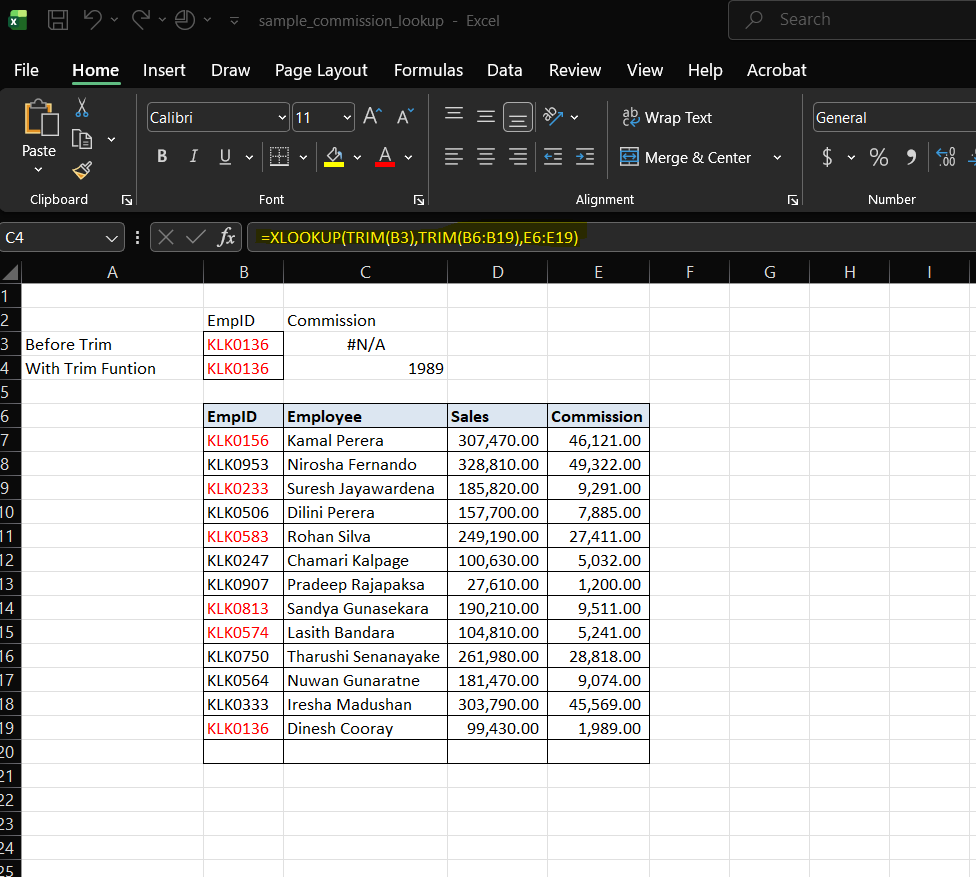
=XLOOKUP(TRIM(B3),TRIM(B6:B19),E6:E19)This formula removes hidden spaces before Excel performs the lookup.
As a result, Excel compares clean values instead of values containing unwanted spaces.
How the Formula Works
Let’s break down the formula step by step.
=XLOOKUP(TRIM(B3),TRIM(B6:B19),E6:E19)TRIM(B3)
Removes any spaces from the Employee ID entered by the user.
For example:
KLK0156becomes:
KLK0156 |TRIM(B6)
Removes spaces from all Employee IDs in the lookup table.
This ensures every Employee ID follows the same format.
E6
Returns the commission amount associated with the Employee ID.
Because both sides are cleaned before comparison, XLOOKUP can successfully find the correct match.
Before Using TRIM
Without TRIM, the formula looks like this:
=XLOOKUP(B3,B6:B19,E6:E19)Result:
#N/AReason: The Employee IDs contain hidden spaces. Although the value exists in the table, Excel cannot find an exact match.
After Using TRIM
Now let’s use:
=XLOOKUP(TRIM(B3),TRIM(B6:B19),E6:E19)Result:
46,121The lookup works correctly because the hidden spaces have been removed before the comparison takes place.
Extra spaces are one of the most common reasons why XLOOKUP returns a #N/A error.
Although the data may appear correct, hidden spaces can prevent Excel from finding an exact match.
In our employee commission worksheet, several Employee IDs contained additional spaces. Because of these spaces, the standard XLOOKUP formula failed to return the correct commission amount.
By combining XLOOKUP with the TRIM function, we were able to remove hidden spaces and successfully return the correct result.
The formula:
=XLOOKUP(TRIM(B3),TRIM(B6:B19),E6:E19)is a simple but powerful solution that every Excel user should know.
The next time XLOOKUP returns an unexpected #N/A error, don’t immediately assume the formula is wrong. Check your data for hidden spaces and let TRIM do the cleaning for you.